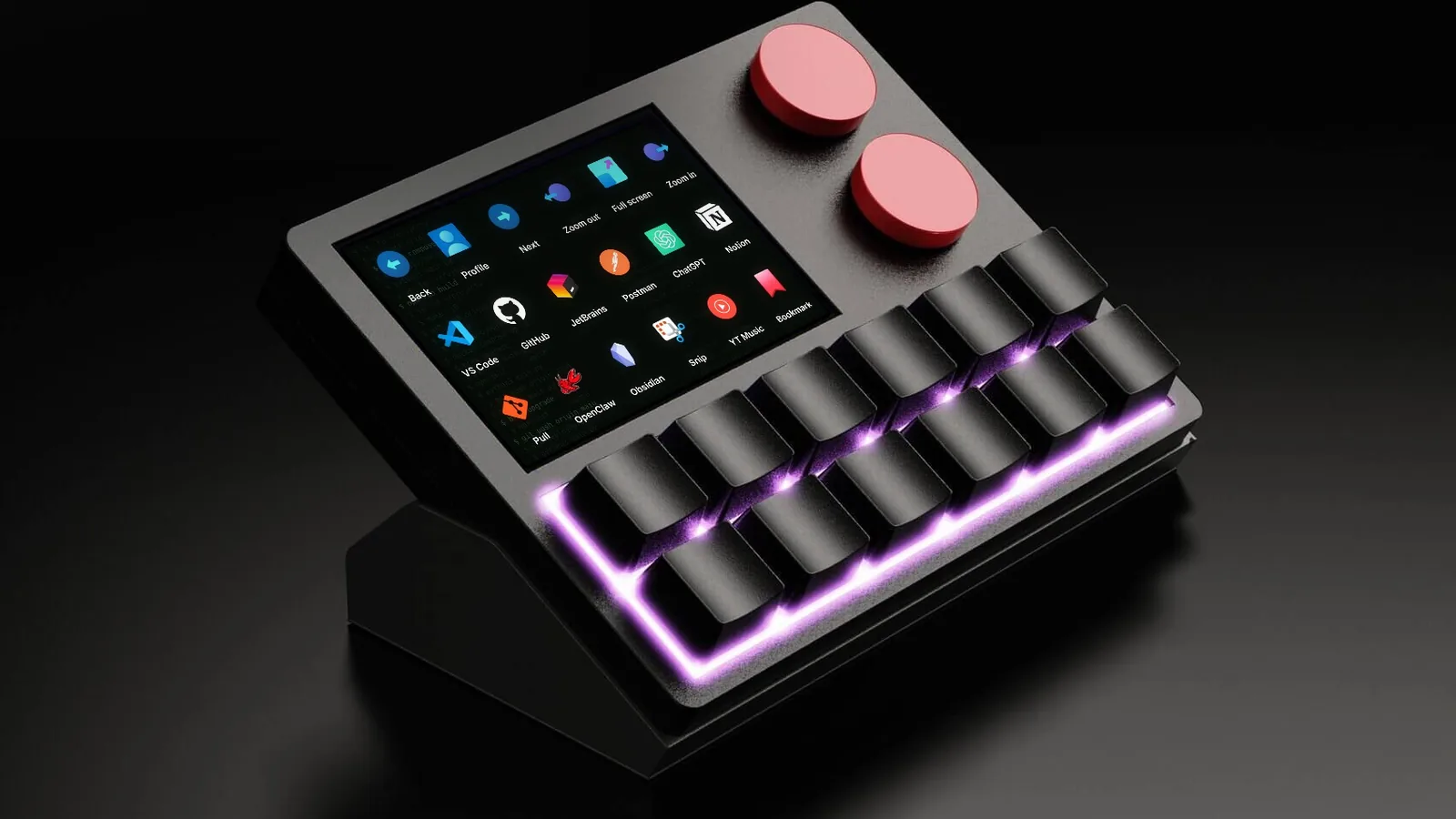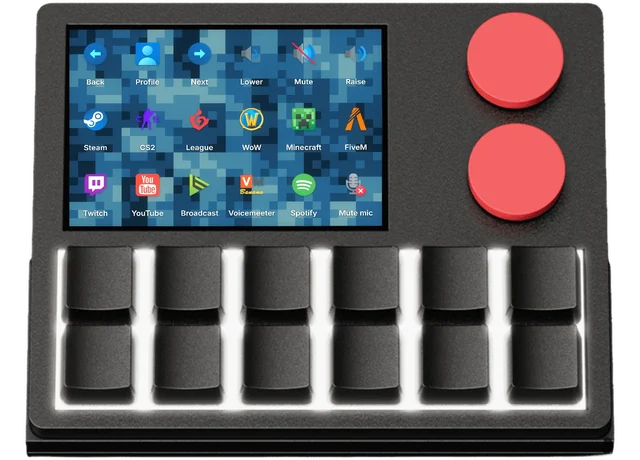

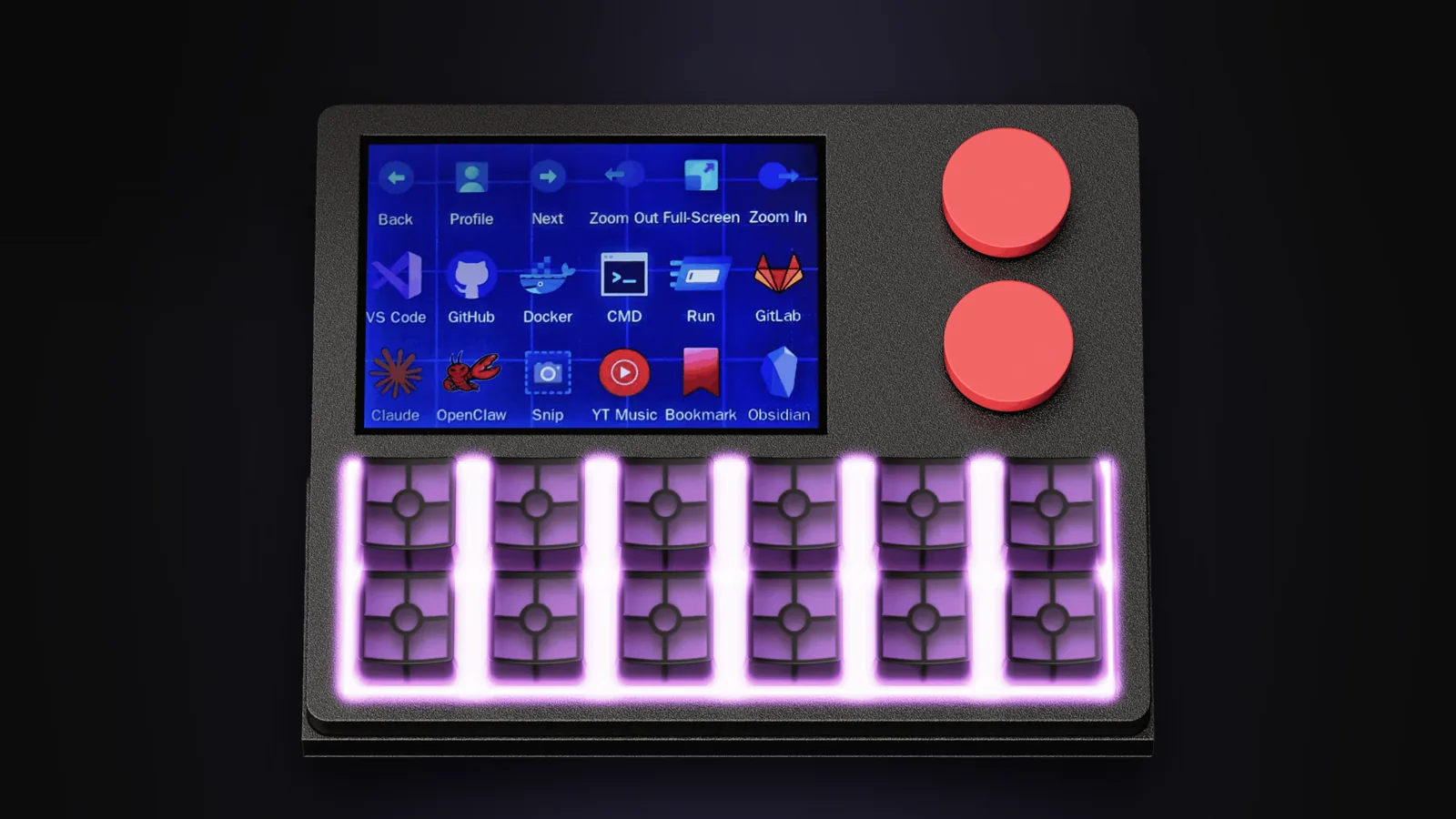
What is a macro pad? If you’ve seen a streamer flick between scenes with one tap, or a video editor cut a timeline without touching the keyboard, you’ve seen one at work. A macro pad is a small extra keypad that sits next to your keyboard, and every key on it does whatever you tell it to. This guide explains how they work, what people actually put on them, the different types you can buy, and how to work out whether one would save you time.
Quick answer
A macro pad is a small keypad of programmable keys that connects to your computer, usually over USB. You assign each key an action: a keyboard shortcut, an app to open, a block of text to type, or a sequence of steps (a macro). One press then does the whole job, so you stop hunting through menus or holding down three-key shortcuts.
What is a macro pad, exactly?
A macro pad is a secondary input device. It looks like a cut-down keyboard, typically with somewhere between 3 and 16 keys, and sometimes rotary knobs or a small screen. Unlike your keyboard, the keys don’t have fixed jobs. Out of the box they might do nothing at all. You decide what each one does.
The name comes from the word macro, short for macroinstruction: one instruction that expands into many. In computing, a macro is a recorded or written sequence of actions that runs from a single trigger. A macro pad gives those sequences a physical home. Press the key, the sequence runs.
You’ll see the same kind of device sold under a lot of names:
- Macro pad or macropad, the most common terms.
- Macro keypad or macro keyboard.
- Programmable keypad or shortcut keyboard.
- Stream deck, used loosely after Elgato’s popular Stream Deck, even for devices that aren’t made by Elgato.
- Gaming keypad, for left-hand pads designed around games.
They all solve the same problem: the things you do most on a computer are often buried behind awkward shortcuts or several clicks, and a macro pad brings them within one press. We cover the hardware side in more depth in our guide to the programmable keypad.
How does a macro pad work?
Most macro pads connect to your computer as a standard USB HID device, the same class of device as a keyboard or mouse (HID stands for human interface device, defined by the USB Implementers Forum). That’s why they usually work the moment you plug them in, with no drivers.
When you press a key, one of two things happens:
- The pad sends keystrokes itself. The pad’s firmware looks up what you assigned to that key in the active profile and sends the matching key presses to the computer, exactly as if you’d typed them. A key set to Ctrl+Shift+M sends Ctrl, Shift and M together. Because the pad does this on its own, these actions keep working on any computer, even one without the pad’s software installed.
- A companion app does the work. For anything a keyboard can’t do directly, like launching a specific program, showing live CPU temperatures or talking to OBS, the pad tells an app running on your computer, and the app carries out the action.
Good macro pads mix both. Simple shortcuts live on the device, and richer actions use the app. Here’s how that split usually looks:
| Action | Runs on | Works without the app? |
|---|---|---|
| Keyboard shortcuts | The pad | Yes |
| Typing text snippets | The pad | Yes |
| Media keys (play, volume, mute) | The pad | Yes |
| Multi-step scripts with delays | The pad, on most models | Usually |
| Launching apps and files | The companion app | No |
| Live PC stats on a screen | The companion app | No |
| Deep app control (OBS scenes, plugins) | The app or a plugin | No |
Profiles (sometimes called layers or pages) multiply what a pad can hold. A profile is a full set of key assignments. You might have one for work, one for streaming and one for Photoshop, and switch between them with a key or a dial. Twelve keys across 25 profiles, for example, gives you 300 actions on a pad smaller than a paperback.
What can you do with a macro pad?
Almost anything you can trigger from a keyboard or mouse, plus a few things you can’t. These are the action types you’ll find on most pads:
- Keyboard shortcuts. The bread and butter. Turn Ctrl+Shift+Esc into one key that opens Task Manager, or give your editor’s ripple delete a dedicated button.
- App and website launchers. Open Spotify, your code editor or your company dashboard with one press.
- Text snippets. Type your email signature, address, a code template or a canned reply.
- Macros and scripts. Chain steps together with timing: open the Run dialog, wait half a second, type a path, press Enter.
- Media and volume. Play, pause, skip and mute, without hunting for your keyboard’s tiny function-key combos.
- Mouse actions. Clicks, double-clicks and small cursor moves for repetitive clicking jobs.
- Profile switching. Jump between layouts for different apps or tasks.
- Information display. Pads with a screen can show key labels, icons and even live system stats.
Here’s what a simple everyday layout might look like on a 12-key pad with two dials. Every key here is a real Windows shortcut or a common action type:
- SnipWin+Shift+S
- ClipboardWin+V
- Mute micWin+Alt+K
- Lock PCWin+L
- SignatureText snippet
- BrowserOpen app
- PreviousMedia key
- Play / pauseMedia key
- NextMedia key
- Task MgrCtrl+Shift+Esc
- DesktopWin+D
- CalendarOpen website
That’s just a starting point. For dozens more, see our list of macro pad ideas, sorted by what you do all day.
Who uses a macro pad?
Anyone who repeats the same actions on a computer, which is nearly everyone. A few groups get the most out of one:
- Streamers switch OBS scenes, mute the mic, start and stop recording, fire sound effects and run ad breaks without alt-tabbing out of a game. Our macro pad for streaming guide covers a full OBS setup.
- Video editors put blade, ripple delete, markers and in and out points on keys, and use a dial to scrub the timeline. See our macro pad for video editing page.
- Photographers and designers keep brush size, undo, layer and export commands under one hand while the other stays on the mouse or pen.
- Developers map the command palette, terminal, debugger and Git actions, and keep code snippets a press away. More on that in our page on the macro pad for productivity.
- Office workers use them for Excel shortcuts, meeting mute buttons, email templates and window management.
- Gamers map voice chat, game-specific binds and stream controls, within each game’s rules. Our programmable gaming keypad page goes further.
- People who find keyboards tiring use a macro pad to replace awkward multi-key shortcuts with single presses.
The main types of macro pad
Macro pads range from a few dollars’ worth of keys in a 3D-printed case to desk controllers with screens. Here’s how the main types compare:
| Type | What it is | Best for | Trade-off |
|---|---|---|---|
| Basic keypads | 3 to 9 keys, often with a single knob | A few favourite shortcuts on a budget | Software is often basic and labels are stickers or memory |
| Mechanical macro pads | 9 to 16 mechanical switches, often hot-swappable | People who want a proper typing feel | No way to see what each key does without labels |
| LCD-key pads | Every key is a small screen (the Stream Deck style) | Streamers who want icons on every button | Keys feel flatter, with less travel than mechanical switches |
| Pads with dials | Keys plus rotary knobs that turn and press | Volume, scrubbing, zoom, brush size | Fewer keys for the same desk space |
| Pads with a screen | Mechanical keys plus a shared display | Seeing labels, profiles and stats at a glance | Costs more than a basic keypad |
| DIY kits | A board you build and flash yourself, often with QMK or KMK | Tinkerers who enjoy the build | Time, tools and firmware set-up |
If you’re weighing up the build-it-yourself route, our guide to a DIY macro pad versus buying one runs through the real costs.
Macro pad vs keyboard shortcuts vs Stream Deck
“I already know my shortcuts” is the most common objection, and it’s a fair one. A macro pad doesn’t give you abilities your keyboard lacks. It changes how much effort those abilities cost.
- Keyboard shortcuts are free and fast once memorised, but many need two hands, three fingers or a stretch across the board. Every app has its own set, and you have to remember all of them.
- A macro pad puts the shortcuts you actually use under one hand, labelled, and can switch the whole set when you change apps. It can also do things a single shortcut can’t, like typing text or running a sequence.
- A Stream Deck is one kind of macro pad, with a screen behind every key and a large library of plugins. It’s excellent for streaming. It has flat, short-travel keys rather than mechanical switches, and the best-known models have no dials.
We compare these head to head, including where each one wins, in macro pad vs Stream Deck.
Is a macro pad worth it?
For most people who spend hours a day at a computer, yes. The time saved per press is small, but you press often. Here’s a simple way to estimate it for your own work:
- Pick an action you repeat, like exporting a file, muting a call or pasting a template.
- Time how long it takes now, including finding the menu or remembering the shortcut. Say 4 seconds.
- Estimate how many times a day you do it. Say 50.
That’s 200 seconds a day, or a little over 3 minutes. Across 250 working days it comes to almost 14 hours a year, from one key. Most people fill 10 or more keys with actions like that.
The bigger win is harder to time. A dedicated key means you don’t break concentration to recall a shortcut or hunt through a menu, and you stop making the small mistakes that come with fiddly key combinations. Editors and streamers often say the pad changed how they work, not just how fast.
A macro pad probably isn’t worth it if you only use a computer for browsing and email, or if you already have a keyboard with spare programmable keys that you don’t use. Start with those first.
What to look for when you buy one
The right macro pad depends on what you’ll put on it. These are the questions that matter most:
- How many keys? Six covers a handful of favourites. Twelve to fifteen covers a full workflow for one app. Profiles multiply either. Our guide on how many keys a macro pad needs helps you pick.
- Can you see what each key does? Labels matter more than people expect once you have more than a few keys or several profiles. A macro pad with a screen solves this.
- Dials or no dials? If you adjust anything (volume, zoom, timeline position, brush size), a macro pad with knobs is far nicer than pressing a key repeatedly.
- Switches. Mechanical switches feel better and last longer. Hot-swap sockets let you change them without soldering.
- Software and operating system support. Check what works on your system, and what needs the app.
- On-board memory. Settings stored on the pad keep working on other computers.
Our full best macro pad buyer’s guide walks through each of these with examples.
How to set up a macro pad
Setting one up takes minutes. The details vary by brand, but the steps are the same:
- Plug the pad in and install its configuration app.
- Make a test profile. Set one key to copy and another to paste, then try them in a text editor.
- Write down the actions you repeat most during a normal day.
- Give the most frequent ones the easiest keys to reach, and group related actions together.
- Use it for a week, then move or replace anything you’re not pressing.
We go through this properly, including how to plan a layout, in how to set up a macro pad.
Where NexMacro fits
We make the NexMacro 12-key macro pad, so it’s only fair to tell you what it is and isn’t. It has twelve mechanical keys in hot-swap MX-style sockets, two dials that turn and press, and a 3.5-inch colour screen that shows what each key does, along with icons, backgrounds and live PC stats. It holds 25 profiles, and dial one switches between them.
On Windows 10 and later, the free configuration app does everything: shortcuts, apps, text, scripts, RGB lighting, key icons and PC stats. On macOS and Linux the pad works as a standard USB keyboard today, so shortcuts, text and media keys stored on it work straight away, and the configuration app for those systems is coming in beta. The user manual has the full details.
Frequently asked questions
Is a macro pad the same as a Stream Deck?
A Stream Deck is one type of macro pad. Elgato’s Stream Deck puts a small screen behind every key and connects to a large plugin library. Other macro pads use mechanical keys, dials or a single shared screen instead. They all do the same basic job of running shortcuts and actions from dedicated keys.
Do macro pads work on a Mac?
Most do, because they connect as a standard USB keyboard. Shortcuts, text and media keys stored on the pad work on macOS without extra software. Features that need the companion app, like app launching or live stats, depend on whether the maker offers a Mac version. Check before you buy.
Do I need software to use a macro pad?
You need software to set the keys up, and some features need it running all the time. Once simple actions are saved to the pad’s memory, they work without the software installed, even on another computer.
Are macro pads allowed in games?
Generally, a key that sends one input per press is treated like any other keyboard key. Macros that automate several actions or timing from one press can break a game’s rules. Valve, for example, kicks players from official Counter-Strike 2 servers for input automation. Read our guide to whether macros are bannable before using one in competitive games.
What is the difference between a macro pad and a numpad?
A numpad has fixed number keys. A macro pad’s keys can do anything you assign. Some people do reprogram a spare numpad as a cheap macro pad, but you lose things like labels, profiles, dials and on-board scripts.
How many keys should a macro pad have?
Between 9 and 15 keys suits most people. That’s enough for a full set of actions for one app or task, and profiles let you swap in more. Fewer than six keys tends to feel limiting once you start using it.