
Search for the best macro pad and you’ll find lists of twenty products ranked by someone who used each one for an afternoon. That’s not much help, because the best macro pad for a streamer is a poor choice for a video editor, and neither is right for someone who just wants a mute button and a screenshot key. So instead of a ranking, this guide gives you the features that matter, how to weigh them for your work, and the type of pad that suits each use. We make a macro pad ourselves, and we’ll point out where ours fits and where it doesn’t.
Quick answer
The best macro pad for most people has 9 to 15 mechanical keys, at least one dial, a way to see what each key does (a screen or labelled keys), on-board memory, and software that supports your operating system. Streamers often prefer pads with a screen in every key and a big plugin library. Editors should prioritise dials. If you only need a few shortcuts, a basic 3 to 6 key pad is enough.
The quick checklist
Before comparing products, decide what you’ll put on the keys. Write down the ten actions you repeat most in a normal day. That list tells you how many keys you need, whether you’d use a dial, and which software features matter. Then check each pad against this table:
| Feature | Why it matters | What to look for |
|---|---|---|
| Key count | Too few and you run out; too many and you forget what’s where | 9 to 15 keys for most people, plus profiles |
| Switches | Feel, noise and how long the keys last | Mechanical switches, ideally hot-swappable |
| Dials | Smooth control of anything you adjust | At least one knob that turns and presses |
| Labels or screen | Knowing what a key does without guessing | A display, LCD keys or clear keycap legends |
| On-board memory | Shortcuts that work on any computer | Settings saved to the device |
| Software | What you can actually assign | Shortcuts, apps, text, scripts, profiles, backups |
| OS support | Which features work on your system | A clear list of what works on Windows, macOS and Linux |
| Connection | Reliability and desk clutter | USB-C, a detachable cable, no batteries to charge |
How many keys do you need?
Key count is the first thing people compare and the easiest to get wrong. More keys isn’t automatically better. Past about fifteen, most people stop remembering what’s where, and the far keys go unused.
- 3 to 6 keys suit a handful of global actions: mute, screenshot, play and pause, lock screen. Great as a first pad or a dedicated meeting controller.
- 9 to 15 keys hold a complete workflow for one app, like a full editing or streaming set. This is the sweet spot for most buyers.
- 16 or more keys make sense for streamers running lots of scenes and sound effects, or for people who refuse to use profiles.
Profiles change the maths. A 12-key pad with 25 profiles holds 300 actions, as long as switching profiles is quick. A pad that switches profiles automatically when you change apps, or with a single turn of a dial, effectively has far more keys than the number printed on the box. We dig into this in how many keys a macro pad needs.
Switches: what the keys feel like
There are three common kinds of key on macro pads:
- Membrane or rubber-dome keys are cheap and quiet but feel mushy and wear out sooner. You’ll find them on some gaming keypads and budget pads.
- Mechanical switches have a spring and a defined actuation point, so every press feels the same. They’re rated for tens of millions of presses. They come in linear, tactile and clicky types.
- LCD keys, as on the Elgato Stream Deck, put a small screen under a clear key. They show an icon per key but have short, flat travel more like a button than a keyboard key.
If you can, pick a pad with hot-swap sockets. You can pull a switch out and push a different one in without soldering, so you can make the pad quieter, lighter or more tactile later, or replace a faulty switch in seconds. Our guide to the best switches for a macro pad explains the differences.
Dials and knobs
A key is perfect for anything that happens once: cut, mute, export. It’s clumsy for anything you adjust: volume, zoom, brush size, timeline position, scrolling. Pressing “volume up” eight times is worse than a quick turn.
Rotary dials (also called encoders or knobs) fix that. Most turn in clicks or steps and also press like a button, so one dial can do three things: turn left, turn right and press. If you edit video, photos or audio, or you stream, consider a dial essential. Two dials is better still, because you can keep one for something global like volume or profile switching and use the other for the app in front of you. See our guide to the macro pad with knobs for what people map to them.
How will you know what each key does?
This is the feature buyers underrate most. With four keys you’ll remember. With twelve keys across five profiles, you won’t. Your options:
- Nothing. Plain keycaps. Fine for very small pads.
- Printed or relegendable keycaps. Clear but fixed to one profile.
- LCD keys. Every key shows its own icon and changes with the profile. Excellent for visual workflows like streaming.
- A shared screen. One display above or beside the keys shows a label or icon for each key, the active profile and other information, while the keys stay mechanical.
A screen also tells you which profile you’re in, which prevents the classic mistake of pressing “export” in the wrong app. We cover this in detail in why a macro pad with a screen changes things.
Software: the part you can’t see in photos
Two pads with identical hardware can be completely different to live with because of their software. Check these points before you buy:
- Action types. At minimum: shortcuts, media keys, text and app launching. Better: scripts with delays, mouse actions and profile switching.
- On-board memory. Can the pad remember its settings without the app running? If so, your shortcuts work on a work laptop or a friend’s PC.
- Profiles. How many, and how fast can you switch?
- Import and export. Can you back up your layout and share it?
- Operating systems. Look for a plain list of what works on Windows, macOS and Linux. Many pads work as a basic keyboard everywhere, but the configuration app only runs on some systems.
- Updates and openness. Firmware updates fix bugs and add features. Open-source software means you can see what it does and the community can improve it.
Build, size and connection
Smaller details make a difference every day. USB-C with a detachable cable is easier to replace and route than a fixed cable. Wired pads never need charging and have no pairing to fail, which matters for something you press without thinking. An angled stand makes labels and screens easier to read from your chair. And measure your desk: a pad that’s too wide to sit next to your mouse ends up in a drawer.
The best macro pad for each use
Here’s what to prioritise for the most common jobs, and the type of pad that usually fits best.
Streaming
You need to switch scenes, mute, start and stop recording and fire sound effects while gaming or talking. Prioritise visual labels (LCD keys or a screen), at least 12 keys or quick profiles, and good OBS support, either built in or through hotkeys. A dial for mic or music volume is a big plus. Elgato’s Stream Deck range is the best-known choice here thanks to its plugins. Our macro pad for streaming guide shows a full setup.
Video editing
Editors live on the timeline, so dials matter most: one for scrubbing or zooming, one for something like volume or trim. Then 9 to 15 keys for blade, ripple delete, markers, in and out points and export. Dedicated editing consoles exist with big jog wheels, but a pad with dials and mechanical keys covers most editors. See our page on the macro pad for video editing.
Photo editing and design
You’ll hold a mouse or pen in one hand, so the pad has to work by feel. Choose a compact pad with a dial for brush size or zoom, and keys for undo, tools and layers. Labels help when you switch between Photoshop, Lightroom and Figma.
Programming
Developers benefit from mechanical keys, scripting and text snippets: command palette, terminal, run and debug, Git commands and boilerplate. A screen helps with multiple profiles per language or project. See the macro pad for programming guide.
Office and everyday work
Meeting controls, Excel shortcuts, email templates and window management. Six keys can be enough, but twelve lets you cover two or three apps comfortably. On-board memory matters if you move between a home PC and a work laptop that won’t let you install software.
Gaming
Gamers either want a left-hand gaming keypad (a cut-down keyboard with a thumb stick, like Razer’s Tartarus range) or a macro pad for voice chat, streaming and game-specific binds. Check each game’s rules before using macros. Our guide to whether macros are bannable explains where the lines are.
On a tight budget
Basic 3 to 9 key pads are inexpensive and a fine way to find out whether you like having dedicated keys. Expect simpler software and no labels. If you enjoy building things, a DIY macro pad is a rewarding project, though rarely cheaper once you add up the parts.
What should you spend?
Prices change, so treat these as rough bands in US dollars:
| Type | Typical price | What you get |
|---|---|---|
| Basic keypads | Under $40 | 3 to 9 keys, maybe a knob, simple software |
| Mechanical macro pads | $40 to $130 | Better switches and build, often hot-swap, better software |
| Pads with screens or LCD keys | $80 to $250 | Visual labels, profiles, deeper app control |
| Editing consoles | $150 and up | Large dials and wheels built for specific apps |
Mistakes to avoid
- Buying for key count alone. Twelve well-labelled keys with quick profiles beat thirty keys you can’t tell apart.
- Ignoring software. Read what the app can do on your operating system before you buy, not after.
- Skipping the dial. If anything you do involves adjusting a value, you’ll want one within a week.
- Copying someone else’s layout. Start from your own list of repeated actions. Layout ideas are a starting point, not a template.
- Forgetting the desk. Check the footprint and cable position against where your keyboard and mouse sit.
Where NexMacro fits
Here’s our NexMacro 12-key against the checklist, including the gaps:
| Checklist item | NexMacro 12-key |
|---|---|
| Keys | 12 mechanical keys, 25 profiles, 300 actions |
| Switches | Hot-swap sockets for MX-style switches, no soldering |
| Dials | Two, both turn and press. Dial one switches profiles by default |
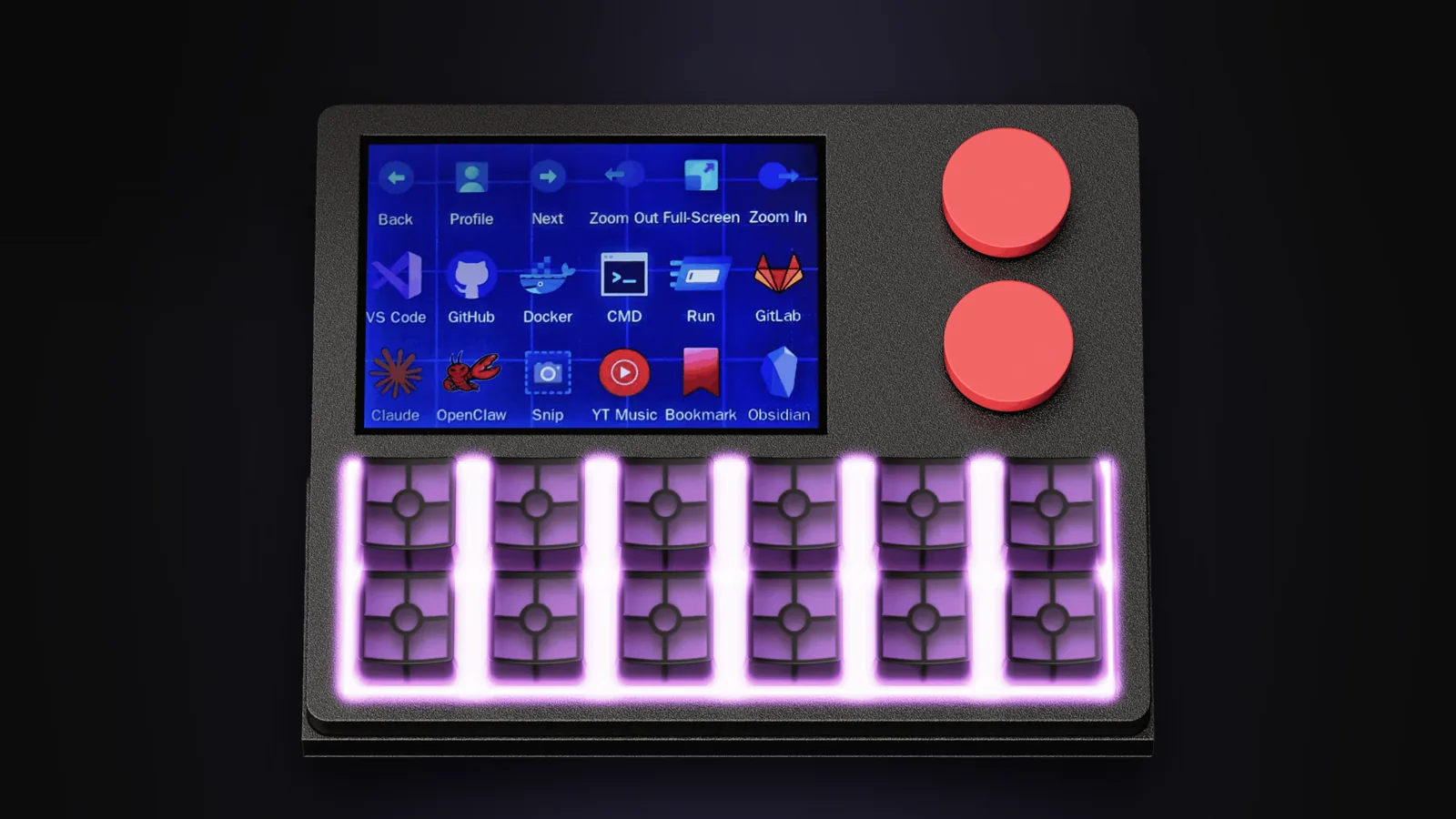
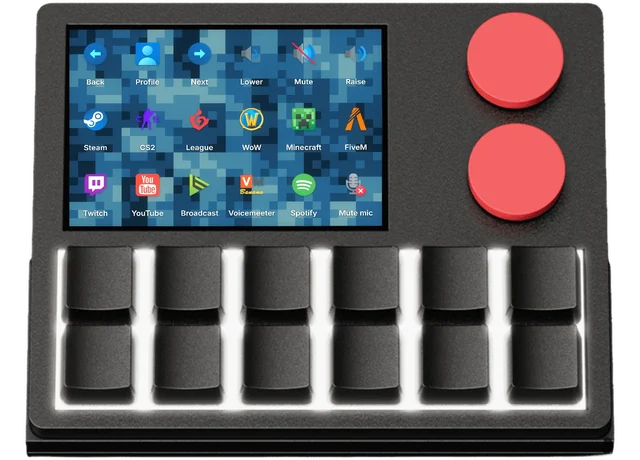
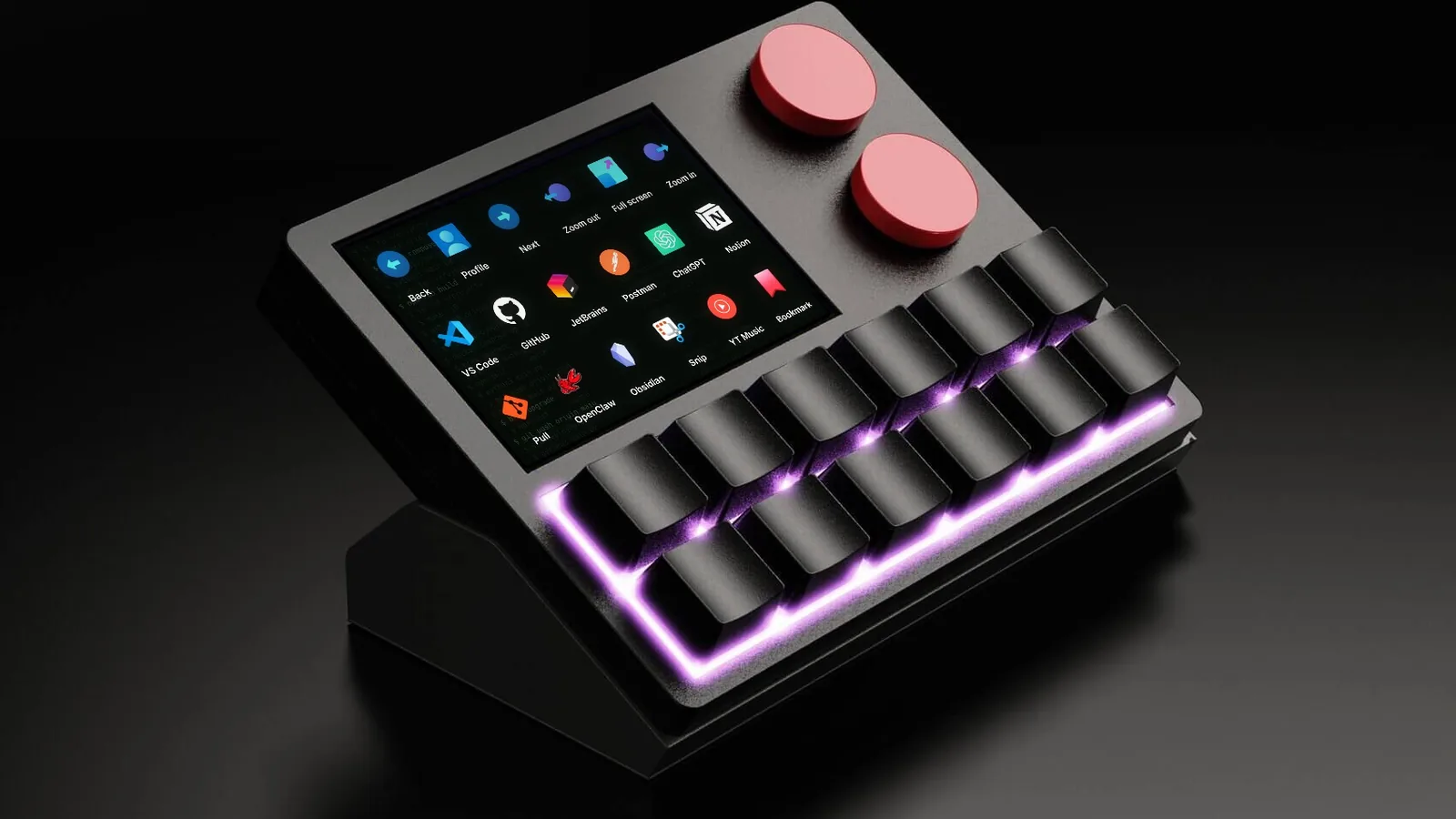
| Labels | A 3.5-inch colour screen with per-key icons, labels and backgrounds |
| Extras | Live PC stats on the screen, RGB lighting per profile, scripts |
| Software | Free, open-source Windows app (v1.0.0). macOS and Linux apps coming in beta |
| Mac and Linux today | Works as a standard USB keyboard; settings stored on the pad still work |
| Connection | Wired USB-C, 1 m cable, angled stand in the box |
| Not for you if | You need wireless, more than 12 keys per screen, or the full app on a Mac right now |
If you’re still deciding between pad styles, our macro pad vs Stream Deck comparison goes deeper on LCD keys versus mechanical keys with a screen. And if you’re new to all this, start with what a macro pad is.
Frequently asked questions
What is the best macro pad for beginners?
Look for 9 to 12 keys, simple software with on-board memory, and labels you can read, either a screen or LCD keys. That’s enough to cover a real workflow without being overwhelming. A dial is worth having from day one if you adjust volume or zoom often.
Are cheap macro pads worth it?
They’re worth it to find out whether dedicated keys suit you. The usual compromises are basic software, no labels and weaker switches. If you end up using one every day, most people upgrade within a year to something with better keys, dials and a way to see what each key does.
Is a Stream Deck better than a macro pad?
A Stream Deck is a macro pad with a screen in every key and a large plugin library, which makes it excellent for streaming. Mechanical macro pads offer a better typing feel and often add dials. Which is better depends on whether you value per-key icons and plugins or tactile keys and knobs.
Should I get a wireless macro pad?
Only if desk clutter really bothers you. Wired pads never need charging, never drop their connection, and can power screens and lighting without battery limits. For something you press dozens of times a day without thinking, reliability usually wins.
What is the best macro pad for Mac?
Check the configuration app first. Nearly every macro pad works on a Mac as a USB keyboard, but many configuration apps are Windows-only or limited on macOS. Our guide to the macro pad for Mac explains what works without an app and what doesn’t.
How long does a macro pad last?
Mechanical switches are commonly rated for tens of millions of presses, so the keys will outlast most computers. Software support is usually the limiting factor, which is why open-source software and regular firmware updates are worth looking for.