Developer Productivity Tools
Why Developers Use Macro Pads
Many developer productivity tools focus only on software. That includes IDE extensions, AI coding tools, terminals, documentation tools, API clients and project management systems. These tools are useful, but they still require the developer to move between windows, remember shortcuts and repeat the same small actions throughout the day.
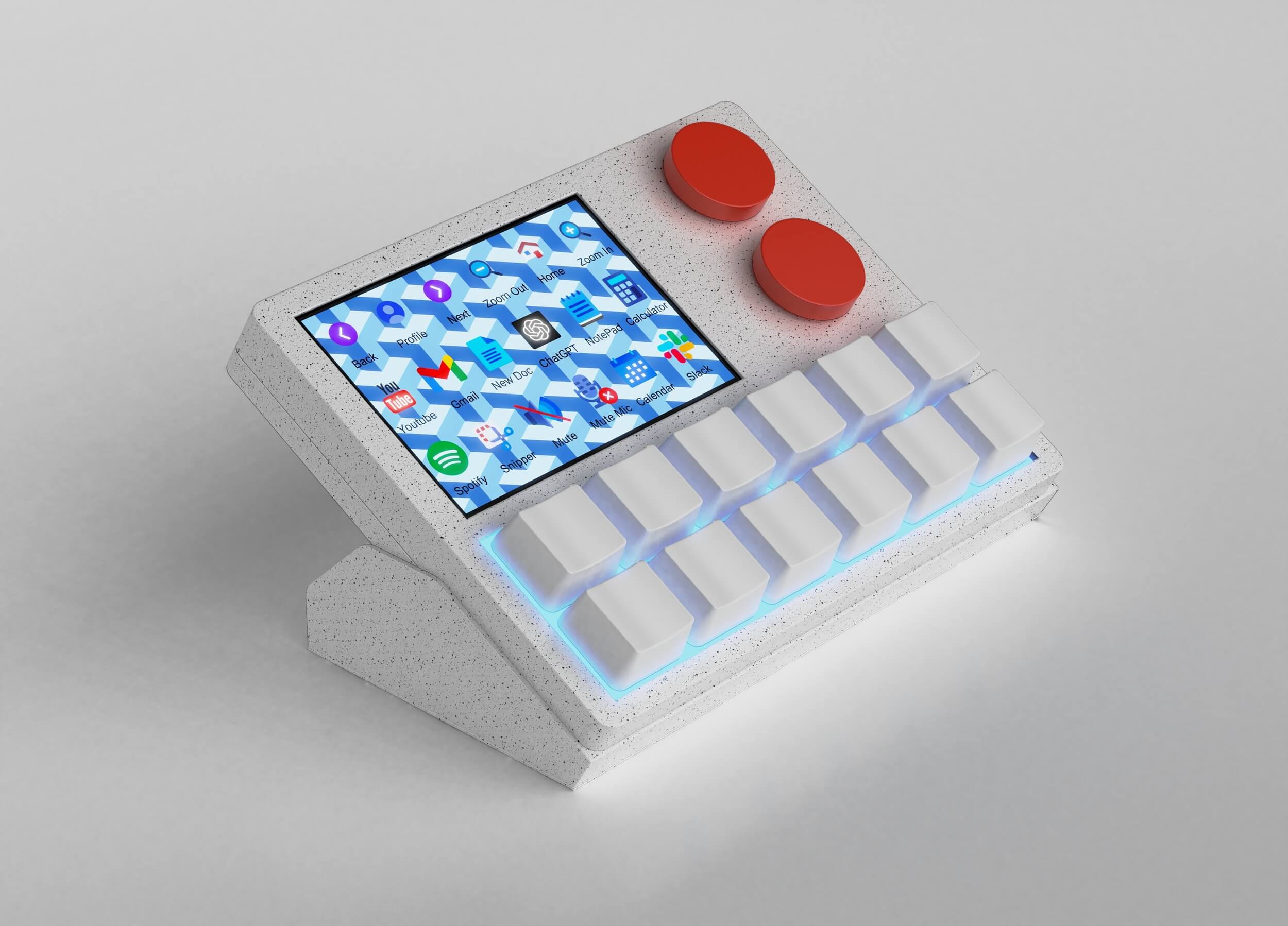
A developer macro pad solves a different part of the problem. It gives repeated workflow actions a physical control surface. NexMacro can be used for terminal commands, IDE shortcuts, AI prompts, meeting controls, app switching, snippet pasting, screenshots, browser actions and quick access to daily tools.
This makes NexMacro a useful companion to AI tools for developer productivity. AI can help write, explain, review and debug code. NexMacro can help trigger the repeated actions around that workflow, such as pasting a code review prompt, opening an AI workspace, switching to documentation, saving a snippet or launching a terminal command.
| Developer task |
Common friction |
How NexMacro helps |
| Running commands |
Repeated terminal commands can be slow to type or search through history. |
Assign common command patterns, scripts or terminal actions to dedicated keys. |
| Using AI tools |
Good AI workflows often rely on repeated prompts and context switching. |
Use keys for reusable prompts, AI workspace shortcuts and text actions. |
| Debugging |
Debugging often involves logs, browser tools, terminal output and repeated checks. |
Create a debugging profile with shortcuts for logs, refresh, search, inspect and test commands. |
| Meetings |
Mute, camera, notes and screen sharing controls interrupt focus. |
Move call controls to a meeting profile so they are available without searching the screen. |
| Documentation |
Writing docs often repeats headings, templates, snippets and formatting actions. |
Paste templates, prompts and formatting shortcuts from labelled macro keys. |