Too Many Repeated Actions
Screenshots, copy and paste, app launching, browser tabs, meeting controls, command lines, and editing shortcuts can add friction when repeated all day.
A programmable macro keypad gives repeated computer actions a dedicated place. Use it for shortcuts, app launching, code commands, editing tools, stream controls, Discord actions, media control, text snippets, and multi-step macros.
A programmable macro keypad triggers shortcuts, macros, snippets, app commands, media controls, and workflow actions from dedicated physical keys. It is most useful when you repeat the same PC tasks every day.
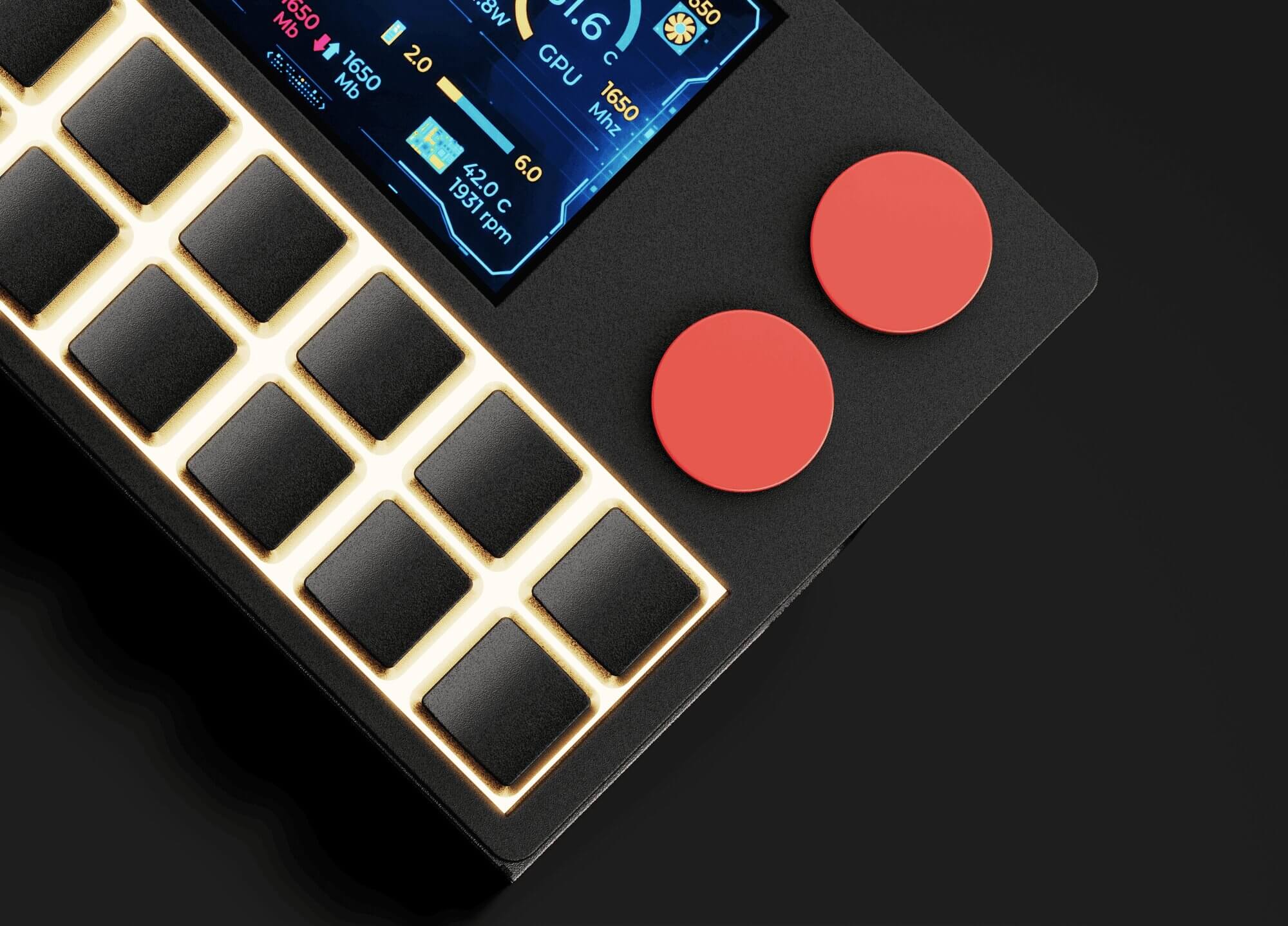
One clean layout for repeated shortcuts, macro actions, and PC control.
Timeline controls, exports, tool switching, zoom, and media actions.
Snippets, Git actions, terminal commands, and app launchers.
OBS, mute, recording, clips, and chat tools.
Screenshots, meetings, browser actions, and text snippets.
A programmable macro keypad is a compact input device with customisable keys that trigger shortcuts, macros, app commands, media controls, snippets, and workflow actions. It is useful for PC users who repeat the same tasks often, including developers, creators, streamers, gamers, office users, and anyone who wants dedicated shortcut controls beside their main keyboard.
Most computer workflows involve repeated actions scattered across menus, keyboard shortcuts, app interfaces, browser tabs, and tiny software buttons. A macro keypad brings those repeated actions into one physical place, which makes your workflow easier to remember and faster to repeat.
The real value comes from building profiles around how you work. One profile can be for editing, another for coding, another for streaming, another for gaming, and another for everyday PC control. That makes a programmable macro keypad much more practical than randomly adding extra keys to your desk.
Screenshots, copy and paste, app launching, browser tabs, meeting controls, command lines, and editing shortcuts can add friction when repeated all day.
A programmable macro keypad gives your most-used actions dedicated keys. MX-style key switches make those actions feel physical, quick, and easier to build into muscle memory.
Profiles, labels, icons, RGB modes, and display feedback help you remember what each layout does when you move between programs and workflows.
The strongest macro keypad setups start with real tasks. These examples show how different users can build useful NexMacro profiles instead of randomly assigning shortcuts.
A developer profile can group repeated actions across VS Code, terminal, browser testing, Git, Docker, local servers, and project folders.
A creative profile can combine editing shortcuts with rotary controls for timeline movement, brush size, zoom, volume, or fine adjustments.
Use a macro keypad for OBS scenes, mic mute, music control, clip capture, chat actions, stream markers, and quick transitions.
Keep your main keyboard focused on movement and gameplay while using a macro keypad for secondary controls.
Build a general profile for meetings, screenshots, clipboard actions, email templates, browser tabs, and common documents.
A strong macro keypad setup should be organised by profiles, not random shortcuts. Each profile can match a different way you use your computer, so your actions stay easier to remember and quicker to use.
Create separate profiles for daily work, creative tools, development, streaming, and gaming. Keep each profile focused so every key has a clear purpose.
Best for: opening apps, browser sets, screenshots, meetings, folders, saved replies, and everyday desktop control.
Best for: editing shortcuts, timeline movement, tool switching, exports, zoom, brush size, and media controls.
Best for: code snippets, Git actions, terminal commands, local tools, app launching, and repeated project commands.
Best for: OBS scenes, mic mute, clip recording, chat tools, Discord actions, sound controls, and quick stream actions.
Move between work, editing, coding, streaming, and gaming without changing devices.
Use the display to show profile names, labels, visuals, and active workflow context.
Keep each profile focused so your macro pad feels simple instead of overloaded.
The main weakness of many macro pads is memory. Once you add several profiles, a key might mean one thing in your editing profile, something else in your streaming profile, and something different again in your coding profile.
NexMacro is designed around that problem. The large display can show profile names, shortcut labels, icons, GIFs, system stats, and active modes. Combined with MX-style key switches, RGB lighting, and dual rotary knobs, it becomes easier to use the same macro keypad across multiple workflows without guessing what each key does.
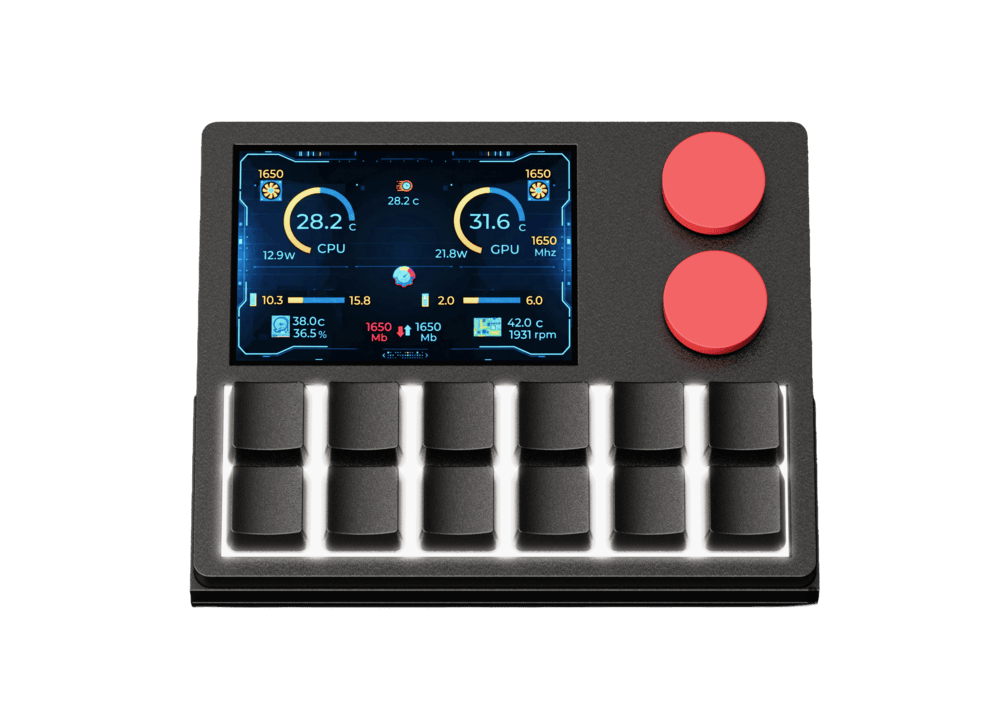
A useful macro keypad should be easy to remember, comfortable to press, flexible across apps, and compact enough to keep on your desk every day.
| Feature | Why It Matters | What NexMacro Adds |
|---|---|---|
| Physical key feel | Shortcut actions feel faster and more intentional when they are triggered from real keys instead of software buttons. | NexMacro uses 12 MX-style key switches for tactile macro control. |
| Enough room for profiles | A small macro keypad should still support different layouts for work, editing, gaming, streaming, and productivity. | NexMacro supports profile-style workflows so one device can handle different setups. |
| Clear visual feedback | Macros become harder to remember as your setup grows, especially when each profile changes what the keys do. | The 3.55-inch display can show shortcut context, profile names, icons, and system information. |
| Rotary controls | Some actions work better on knobs than keys, such as volume, scrolling, timeline movement, zoom, and fine adjustment. | NexMacro includes dual rotary knobs for smoother control options. |
| Desk-friendly size | A macro keypad should add control without replacing your main keyboard or making the desk feel cluttered. | NexMacro is compact enough to sit beside your keyboard as a dedicated command surface. |
A macro keypad becomes more useful when the layout is simple, memorable, and tied to real tasks. These mistakes are common when people first start using macro keys.
Random shortcuts are hard to remember. Build each profile around one workflow, such as editing, coding, streaming, gaming, or daily productivity.
Rotary controls are ideal for volume, zoom, scrolling, brightness, timeline movement, and other actions that feel better as adjustments.
The more profiles you create, the more important visual feedback becomes. Display labels, icons, and profile names help keep the layout clear.
These pages help build the full NexMacro SEO cluster and guide users from research to product comparison.
Common questions people ask before choosing a macro keypad for PC, creative work, gaming, streaming, and productivity.
A programmable macro keypad is a compact device with customisable keys that can trigger shortcuts, macros, app commands, text snippets, media controls, profile changes, and repeated workflow actions.
You can use a macro keypad for screenshots, copy and paste, text snippets, app launching, coding commands, Git actions, editing shortcuts, OBS scenes, Discord mute, recording controls, media actions, and profile-based workflows.
Yes. A macro keypad is useful for productivity when you repeat the same actions often. It can speed up daily computer tasks by putting important shortcuts and commands on dedicated physical keys.
Yes. NexMacro can be used as a programmable macro keypad with 12 MX-style key switches, dual rotary knobs, RGB lighting, custom profiles, shortcut actions, live system stats, and a large 3.55-inch display.
A display helps show shortcut labels, profile names, icons, GIFs, system stats, and active workflow modes. This is useful when one macro keypad is used across several apps or layouts.
It depends on your setup. A keyboard with macro keys keeps everything on one keyboard, while a dedicated macro keypad like NexMacro lets you add programmable controls beside your current keyboard without replacing it.
Start with actions you use every day, such as screenshots, app launching, mute, copy and paste, browser controls, text snippets, media controls, and one or two workflow-specific commands. Build more advanced macros after the basic layout feels natural.
Most users do not need a huge second keyboard. A compact 12-key layout is enough for a strong daily profile, especially when combined with profile switching, rotary knobs, and a display for context.
NexMacro brings shortcut actions, macros, MX-style key switches, dual rotary knobs, RGB lighting, custom profiles, USB desk control, live stats, and a large display into one compact programmable macro keypad for PC and Mac workflows.