Macro Pad for Video Editing

Edit Faster With a Dedicated Timeline Controller

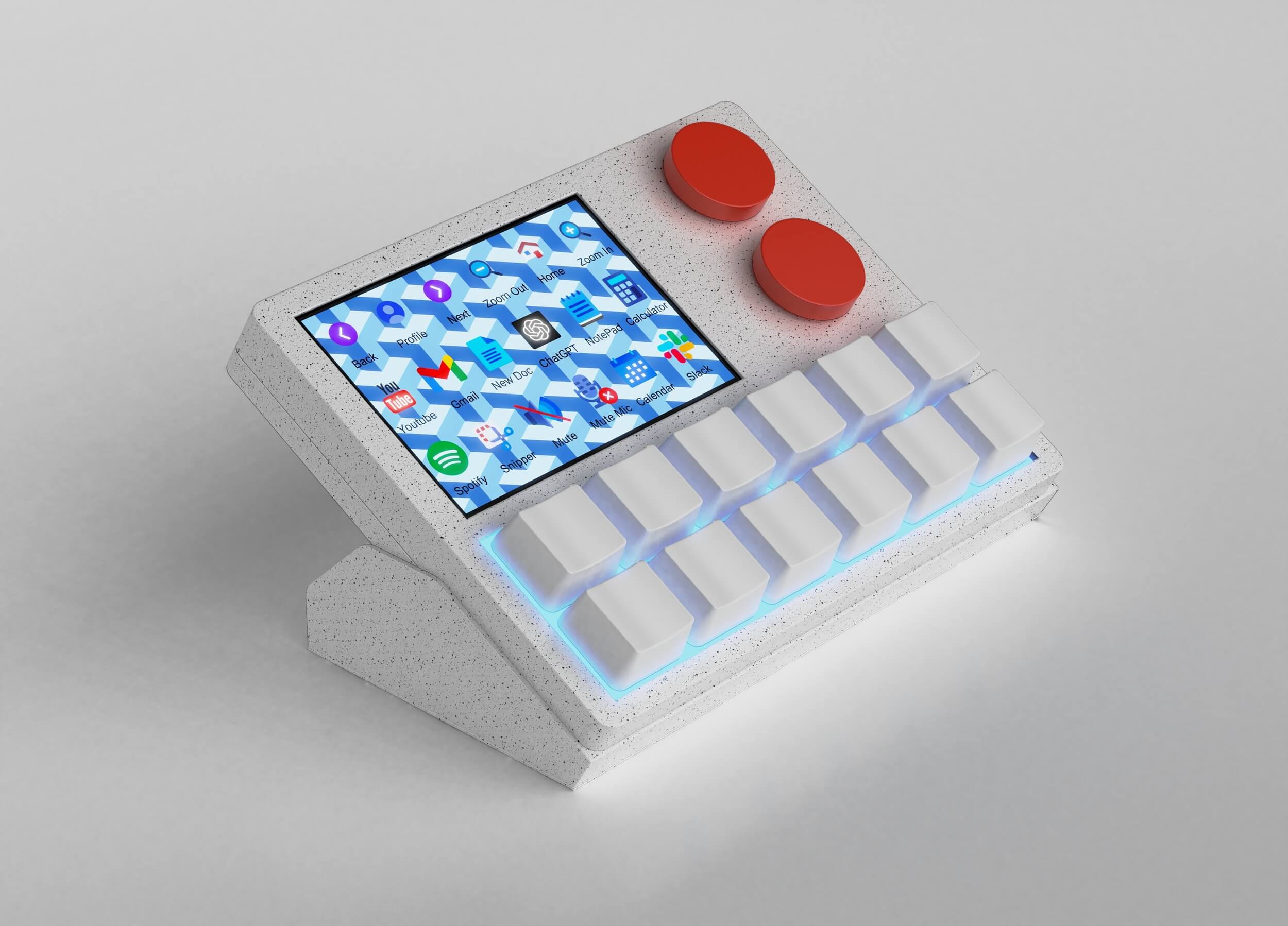
NexMacro is a macro pad for video editing built for editors who want faster timeline control, cleaner shortcut access and a more focused editing workflow. Map cut, copy, duplicate, markers, ripple delete, layers, colour, audio, captions and export actions to physical keys, then use the dual knobs for timeline movement, zoom or audio control.

Timeline shortcuts Cut & trim actions Layer controls Colour workflow Audio controls Export presets
What macro pad can i

A macro pad for video editing helps editors work faster by turning repeated editing commands into dedicated physical controls. NexMacro can be used for cuts, trims, markers, timeline zoom, clip duplication, layers, colour tools, captions, audio actions and export workflows.
Cut Split, blade, trim and remove clips faster.
Copy Copy clips, effects, titles and adjustments.
Layers Move tracks, overlays and stacked assets.
Markers Drop review notes, beats and fix points.
Audio Mute, solo, gain and review waveforms.
Export Open presets, render queues and delivery tasks.
Definition

What Is a Macro Pad for Video Editing?

A macro pad for video editing is a compact programmable keypad used to trigger editing shortcuts, timeline actions, app controls, export tasks and repeated workflow steps from dedicated physical keys. It sits beside your keyboard and gives your most-used editing actions their own shortcut layer.

NexMacro is built for creators who move between video editing, photo editing, 3D modelling and streaming software. Instead of relying only on keyboard combinations, you can create profiles for editing, colour, audio, captions, photo retouching, 3D tools and export workflows.
The main benefit is speed with less mental load. Cutting clips, duplicating layers, adding markers, adjusting brush size, switching tools, controlling audio, changing timeline zoom and launching export presets can all become easier when they are mapped to a dedicated macro pad with clear labels and profiles.

Open-Source Configuration Software

We’re Open Source

The NexMacro configuration software is open source, giving you freedom to customise how your macro pad works. Build editing profiles, map shortcuts, create creative layouts and customise the way your NexMacro workflow behaves across video editing, photo editing, 3D modelling and productivity tools.

Editing Workflow

How to Use a Macro Pad for Video Editing

The best way to use a macro pad for video editing is to assign it the actions you perform constantly while building a timeline. These are usually small but repeated actions: cut, trim, ripple delete, duplicate, markers, playback, zoom, audio control, captions, colour tools and export presets.

1

Choose Repeated Edits

Start with the timeline actions you hit all day, such as cut, trim, ripple delete, copy, paste, duplicate and markers.

2

Create App Profiles

Build separate profiles for video editing, colour grading, audio review, photo retouching, 3D modelling and streaming.

3

Label the Display

Use the screen to show profile names, key labels, workflow icons and reminders so each editing mode stays clear.

4

Map Creative Tools

Move awkward shortcuts, effects, layer controls, tool switching and panel actions onto one-tap keys.

5

Use Dials for Movement

Assign rotary knobs to timeline zoom, horizontal scroll, brush size, exposure, volume or frame movement.

6

Refine Your Layout

A creative macro pad gets better as you notice repeated actions and move them into a cleaner physical workflow.

NexMacro Creative Features

Built for Real Creator Workflows

NexMacro works best when your day includes repeated actions across editing software, photo tools, 3D apps, streaming platforms and desktop controls. Instead of burying those actions inside menus or remembering every shortcut combination, you can move them onto dedicated programmable keys and switch profiles as your work changes.

This makes NexMacro more than a basic shortcut keypad. It is a macro pad for video editing, photo editing and 3D modelling that helps creators organise repeated work into cleaner visual profiles.

Timeline editing Photo retouching 3D modelling Streaming controls Export presets
12 programmable keys Assign timeline shortcuts, creative tools, export actions and app controls.
Profile-based layouts Separate editing, colour, audio, photo, 3D and streaming into their own modes.
3.55-inch visual display Show profile names, shortcut labels, icons and workflow reminders directly on the pad.
Creative Software Workflows

Use NexMacro Beside Your Editing Tools

NexMacro fits into workflows that already use video editing apps, photo tools, 3D software, streaming platforms, communication tools and productivity software. It gives repeated actions across those tools a physical shortcut layer.

Premiere Pro icon
Final Cut Pro icon
Photoshop icon
Figma icon
Canva icon
OBS icon
Discord icon
Zoom icon
ChatGPT icon
Claude icon
VS Code icon
GitHub icon
Slack icon
PowerPoint icon
Excel icon
Snipping Tool icon
Video Editing Shortcut Controller

Why Video Editors Use Macro Pads

Many video editors already know keyboard shortcuts, but editing software can become shortcut-heavy very quickly. A single project can involve timeline navigation, trim tools, ripple edits, clip duplication, audio adjustments, colour controls, caption tools, effects panels and export settings. A video editing macro pad gives the most repeated actions a dedicated place.

NexMacro is designed for that kind of workflow. It can be used as a shortcut controller for video editing, photo editing, 3D modelling and live production, with separate profiles for different stages of the creative process.

This also makes NexMacro useful for creators who move between multiple apps. A video editing profile can focus on timeline actions. A photo editing profile can focus on brush size, masks and export presets. A 3D modelling profile can focus on view switching, transforms and render previews. A streaming profile can focus on scenes, mute controls and live actions.

Creative task Common friction How NexMacro helps
Timeline editing Cutting, trimming and timeline movement can require repeated shortcut combinations. Assign cut, trim, ripple delete, markers, playback and zoom to physical controls.
Photo editing Brush, mask, crop and export actions can interrupt the editing rhythm. Create a photo profile for brush size, masks, previews, ratings and batch exports.
3D modelling Modelling workflows often switch between views, tools, snapping and transforms. Use keys for tool switching and dials for movement, zoom or adjustment controls.
Audio review Volume, mute, solo and scrubbing actions often repeat throughout a project. Use dials and macro keys for audio levels, mute actions and playback review.
Export and delivery Creators often repeat render, export and delivery steps across projects. Trigger export presets, render queues, folder actions and delivery workflows faster.
NexMacro 3.55 inch display for editing shortcuts and creative profiles
Large on-device display Labels make creative profiles easier to remember
3.55-Inch Display

Editing Shortcuts Need Context

A shortcut is only useful when you remember what it does. This is where NexMacro’s display matters. You can use the screen to show profile names, shortcut labels, icons, GIFs, custom visuals or system information, giving each layout a clearer identity.

For video editing, photo editing and 3D modelling, this makes a huge difference. The same physical keys can mean different things in each profile, while the display helps show whether you are in timeline, colour, audio, photo, 3D, streaming or desktop mode.

Profile names Know whether you are in editing, colour, audio, photo, 3D or streaming mode.
Shortcut labels Use visible labels instead of remembering every editing key assignment.
Workflow context Show system stats, profile cues or visual reminders while you work.
Comparison

Macro Pad vs Keyboard Shortcuts

Keyboard shortcuts are useful, but they become harder to manage as your creative workflow grows. Video editors, photo editors and 3D artists often rely on dozens of shortcuts across different apps. A macro pad does not replace those shortcuts. It gives the most important ones a clearer and more accessible place.

Method Best for Weakness Why NexMacro helps
Keyboard shortcuts Fast actions inside one app when the shortcut is easy to remember. Shortcuts become harder to remember across editing, photo and 3D apps. NexMacro lets you assign important shortcuts to visible, dedicated keys.
Mouse menus Occasional actions that do not need to be triggered often. Menus are slower for repeated timeline, layer and tool actions. NexMacro turns repeated menu actions into one-tap controls.
Software panels Detailed editing controls, settings and deep app features. Panels can take screen attention away from the creative work. NexMacro keeps frequent actions close to your hand without opening menus.
Macro pad Repeated shortcuts, timeline actions, tool switching, profiles and cross-app controls. Needs a thoughtful setup to match your workflow. NexMacro adds 12 keys, a display, profile switching and dual rotary controls.
FAQ

Macro Pad for Video Editing FAQ

Is a macro pad good for video editing?

Yes. A macro pad is useful for video editing when you repeat shortcuts such as cut, trim, ripple delete, markers, playback, timeline zoom, captions, audio controls and export actions.

How can I use NexMacro for video editing?

You can use NexMacro for timeline shortcuts, playback controls, markers, captions, audio controls, colour tools, export presets, app switching and profile-based editing workflows.

Can NexMacro be used for photo editing?

Yes. Photo editors can use NexMacro for crop, brush size, masks, before and after previews, ratings, export presets, tool switching and batch editing actions.

Can a macro pad help with 3D modelling?

Yes. A programmable macro pad can help with 3D modelling by placing view switching, transforms, snapping, camera movement, render previews and modelling tools on dedicated keys.

What makes NexMacro different from basic shortcut keys?

NexMacro combines 12 programmable keys with a 3.55-inch display, profile switching, visual labels, RGB lighting and dual rotary controls, making creative shortcuts easier to organise and remember.

Does a macro pad replace my keyboard?

No. A macro pad sits beside your keyboard. Your keyboard remains for typing, while the macro pad handles repeated shortcuts, commands, creative controls and workflow actions.

Ready to Build Your Creative Shortcut Layer?

Build a Faster Editing Setup

NexMacro gives your repeated video editing shortcuts, photo editing actions, 3D modelling tools, streaming controls and export workflows a dedicated physical home. Use it beside your keyboard to work faster, switch modes cleaner and keep your most-used creative actions easier to remember.

12 programmable keys 3.55-inch display Dual rotary knobs Creative profiles Video + photo + 3D