Macro Pad for Productivity

A Macro Pad for Faster Workflows

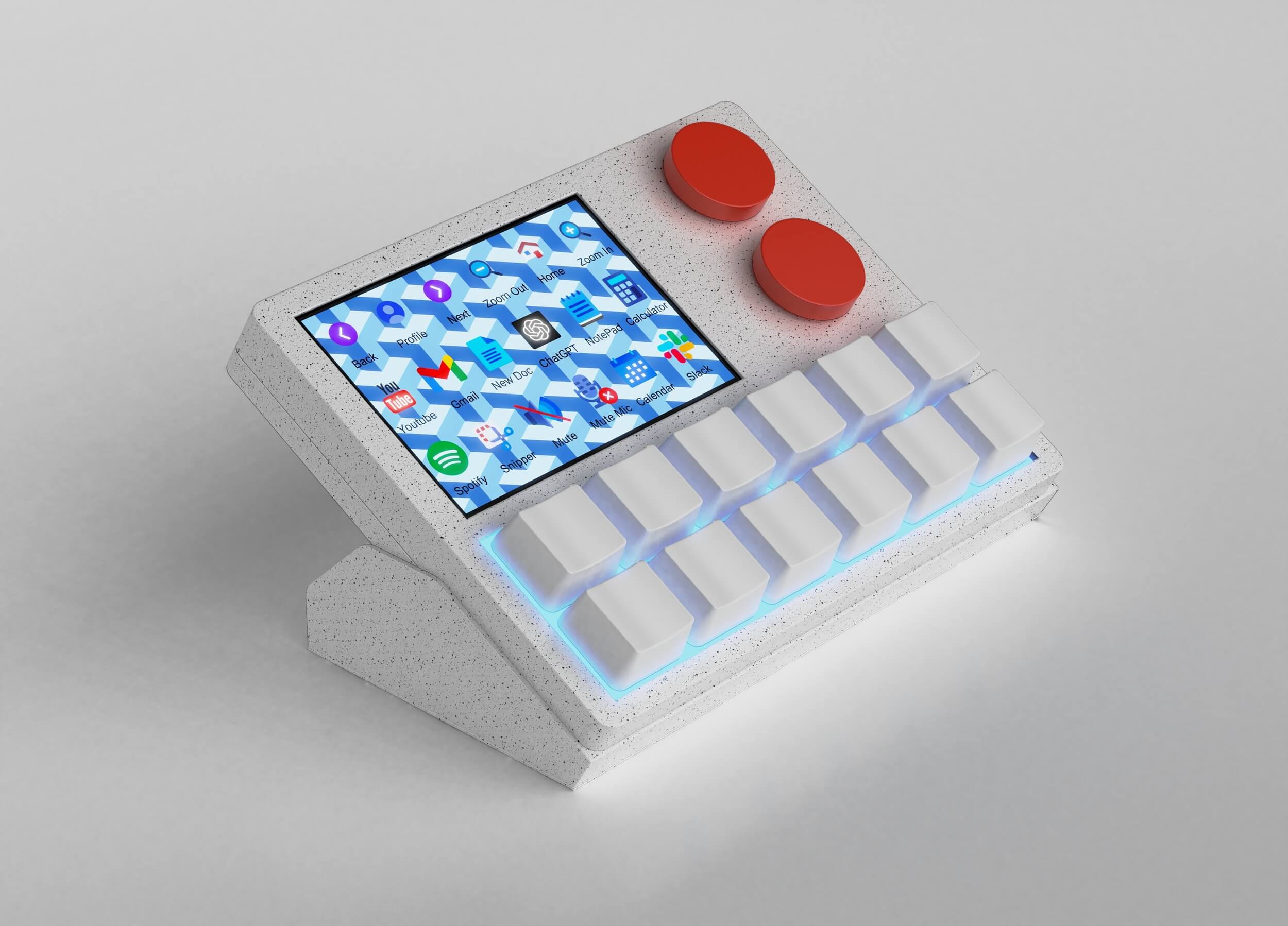
NexMacro is a macro pad for productivity built for people who repeat the same shortcuts, commands, app switches, AI prompts and desktop actions every day. Instead of memorising dozens of keyboard shortcuts, you can move your most-used workflow actions onto 12 programmable keys with a large 3.55-inch display for labels, icons and profile context.

Developer shortcuts AI prompt keys Terminal commands App switching Meeting controls Profile workflows
What is a Macro Pad

A productivity macro pad helps users work faster by turning repeated shortcuts, app launches, commands, AI prompts and system controls into dedicated one-tap actions. NexMacro adds 12 programmable keys, profile switching and a 3.55-inch display for clearer workflow control.

Definition

What Is a Macro Pad for Productivity?

A macro pad for productivity is a compact programmable keypad used to trigger shortcuts, macros, commands, app actions and repeated workflow steps from dedicated physical keys. It sits beside your keyboard and handles the actions you use often, while your main keyboard stays focused on typing.

NexMacro takes that idea further by combining 12 programmable keys with a large on-device display. Your shortcuts do not have to live only in your memory. You can create profiles for coding, AI tools, meetings, editing, browsing, streaming or daily admin, then label those profiles visually on the screen.

The biggest productivity benefit is not one single shortcut. It is the way small repeated actions stop interrupting your focus. Opening the same tool, pasting the same prompt, running the same command, muting a meeting, switching to a project folder or launching a browser tab can all become faster when they are mapped to a dedicated key.

Open-Source Configuration Software

We’re Open Source

The NexMacro configuration software is open source, giving you freedom to customise the way your macro pad works. Build profiles, edit shortcuts, create productivity layouts and fully customise every part of your NexMacro experience.

Productivity Workflow

How to Use a Macro Pad for Productivity

The best way to use a macro pad for productivity is to assign it the actions that interrupt your focus most often. These are usually small actions that repeat constantly across a workday: opening the same app, launching the same folder, pasting the same text, running the same command, muting a call or switching between tools.

1

Choose Repeated Actions

Start with actions you perform every day, such as opening tools, pasting snippets, running commands, taking screenshots or switching apps.

2

Create Work Profiles

Build separate profiles for coding, AI tools, meetings, editing, browsing, streaming, gaming or general desktop control.

3

Label the Display

Use the screen to show profile names, key labels, icons or visual reminders so your macro pad stays easy to understand.

4

Map Common Shortcuts

Move awkward key combinations onto one-tap actions, especially shortcuts that require multiple keys or break your typing flow.

5

Add AI Prompt Keys

Save prompts for code review, debugging, documentation, rewriting, summarising or planning so AI tools become faster to use.

6

Refine Over Time

A productivity macro pad gets better as you notice repeated actions and move them into your physical workflow.

NexMacro Productivity Features

Built for Real Productivity Workflows

NexMacro works best when your day includes repeated actions across coding, AI tools, meetings, browser tabs, admin tasks and creative work. Instead of keeping all of those actions buried in menus or memorised keyboard shortcuts, you can move them onto dedicated programmable keys and switch between layouts as your work changes.

This is what makes NexMacro more than a basic shortcut keypad. It is a macro pad for productivity that helps developers, engineers, power users and general desktop users organise repeated work into cleaner profiles.

Developer shortcuts AI prompt actions Meetings & admin Profile switching Daily desktop control
12 programmable keys Assign shortcuts, app launches, pasted prompts, text actions and system controls.
Profile-based layouts Separate coding, AI, meetings, admin, editing and daily productivity into their own modes.
3.55-inch visual display Show profile names, shortcut labels, icons and workflow reminders directly on the pad.
Developer Productivity Tools

Use NexMacro Beside Your Daily Tools

NexMacro fits into workflows that already use AI tools, code editors, browsers, design apps, meeting software, communication tools and creative software. It gives repeated actions across those tools a physical shortcut layer.

ChatGPT icon
Claude icon
VS Code icon
Docker icon
GitHub icon
Postman icon
Figma icon
Slack icon
Zoom icon
Discord icon
Photoshop icon
Premiere Pro icon
Excel icon
OBS icon
Canva icon
Spotify icon
Developer Productivity Tools

Why Developers Use Macro Pads

Many developer productivity tools focus only on software. That includes IDE extensions, AI coding tools, terminals, documentation tools, API clients and project management systems. These tools are useful, but they still require the developer to move between windows, remember shortcuts and repeat the same small actions throughout the day.

A developer macro pad solves a different part of the problem. It gives repeated workflow actions a physical control surface. NexMacro can be used for terminal commands, IDE shortcuts, AI prompts, meeting controls, app switching, snippet pasting, screenshots, browser actions and quick access to daily tools.

This makes NexMacro a useful companion to AI tools for developer productivity. AI can help write, explain, review and debug code. NexMacro can help trigger the repeated actions around that workflow, such as pasting a code review prompt, opening an AI workspace, switching to documentation, saving a snippet or launching a terminal command.

Developer task Common friction How NexMacro helps
Running commands Repeated terminal commands can be slow to type or search through history. Assign common command patterns, scripts or terminal actions to dedicated keys.
Using AI tools Good AI workflows often rely on repeated prompts and context switching. Use keys for reusable prompts, AI workspace shortcuts and text actions.
Debugging Debugging often involves logs, browser tools, terminal output and repeated checks. Create a debugging profile with shortcuts for logs, refresh, search, inspect and test commands.
Meetings Mute, camera, notes and screen sharing controls interrupt focus. Move call controls to a meeting profile so they are available without searching the screen.
Documentation Writing docs often repeats headings, templates, snippets and formatting actions. Paste templates, prompts and formatting shortcuts from labelled macro keys.
NexMacro 3.55 inch display for productivity shortcuts and macro profiles
Large on-device display Labels make shortcuts easier to remember
3.55-Inch Display

Productivity Shortcuts Need Context

A shortcut is only useful when you remember what it does. This is where NexMacro’s display matters. You can use the screen to show profile names, shortcut labels, icons, GIFs, custom visuals or system information, giving each layout a clearer identity.

For productivity, this makes a huge difference. A coding profile, AI tools profile, meeting profile and editing profile can all use the same physical keys while showing different labels and visual cues. The display helps reduce guessing and makes profile switching easier to manage.

Profile names Know whether you are in coding, AI, meetings, admin or creative mode.
Shortcut labels Use visible labels instead of remembering every key assignment.
System context Show stats or status information without leaving your main workflow.
Comparison

Macro Pad vs Keyboard Shortcuts

Keyboard shortcuts are useful, but they become harder to manage as your workflow grows. Developers, designers, engineers and power users often rely on dozens of shortcuts across different apps. A macro pad does not replace those shortcuts. It gives the most important ones a clearer and more accessible place.

Method Best for Weakness Why NexMacro helps
Keyboard shortcuts Fast actions inside one app when the shortcut is easy to remember. Shortcuts become difficult to remember across many apps and profiles. NexMacro lets you assign important shortcuts to visible, dedicated keys.
Mouse menus Occasional actions that do not need to be triggered often. Menus are slower for repeated actions and can interrupt focus. NexMacro turns repeated menu actions into one-tap controls.
Software launchers Searching files, apps and commands through text input. Still requires typing and screen attention. NexMacro can launch apps, folders and workflows directly from physical keys.
Macro pad Repeated shortcuts, commands, prompts, profiles and cross-app controls. Needs a thoughtful setup to match your workflow. NexMacro adds 12 keys, a display, profile switching and visual shortcut labels.
FAQ

Macro Pad for Productivity FAQ

Is a macro pad good for productivity?

Yes. A macro pad is good for productivity when you repeat shortcuts, commands, app launches, prompts, meeting controls or system actions often. It gives those actions dedicated physical keys instead of relying only on memory.

How can I use NexMacro for productivity?

You can use NexMacro for terminal commands, AI prompts, app switching, screenshots, snippets, meeting controls, editing shortcuts, browser actions, audio controls and profile-based workflows.

Can developers use a macro pad?

Developers can use a macro pad for IDE shortcuts, terminal actions, build commands, testing workflows, AI prompt templates, documentation templates, Git actions and debugging profiles.

What makes NexMacro different from basic shortcut keys?

NexMacro combines 12 programmable keys with a large 3.55-inch display, profile switching, visual labels, RGB lighting and rotary controls, making shortcuts easier to organise and remember.

Can a macro pad help with AI tools?

Yes. A macro pad can help with AI tools by storing reusable prompts, launching AI workspaces, pasting context templates, switching apps and triggering repeated actions around AI-assisted workflows.

Does a macro pad replace my keyboard?

No. A macro pad sits beside your keyboard. Your keyboard remains for typing, while the macro pad handles repeated shortcuts, commands, app controls and workflow actions.

Ready to Build Your Shortcut Layer?

Build a Better Productivity Setup

NexMacro gives your repeated shortcuts, AI prompts, terminal commands, app actions, meeting controls and profile-based workflows a dedicated physical home. Use it beside your keyboard to work faster, switch modes cleaner and keep your most-used actions easier to remember.

12 programmable keys 3.55-inch display Profile switching Developer friendly Productivity + gaming